How to organize messy files with AI: add a folder, write a prompt, and optionally run everything offline with a local model.
1. Organizing files
1.1 Add a folder
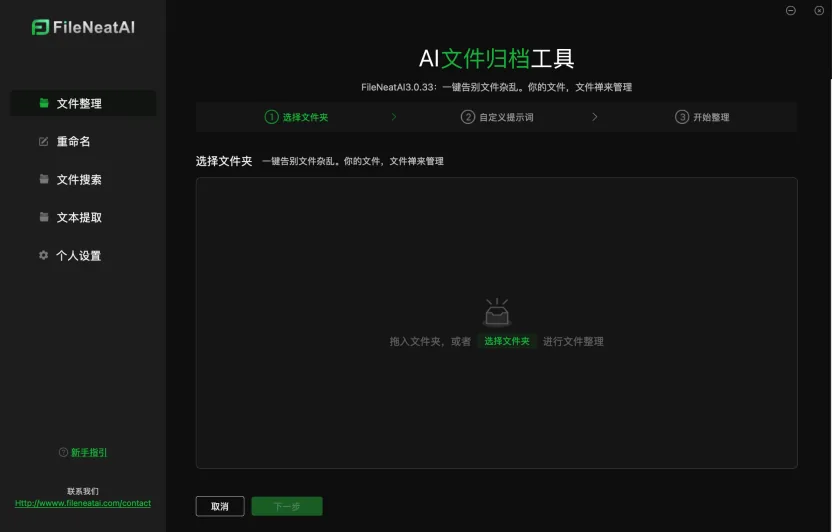
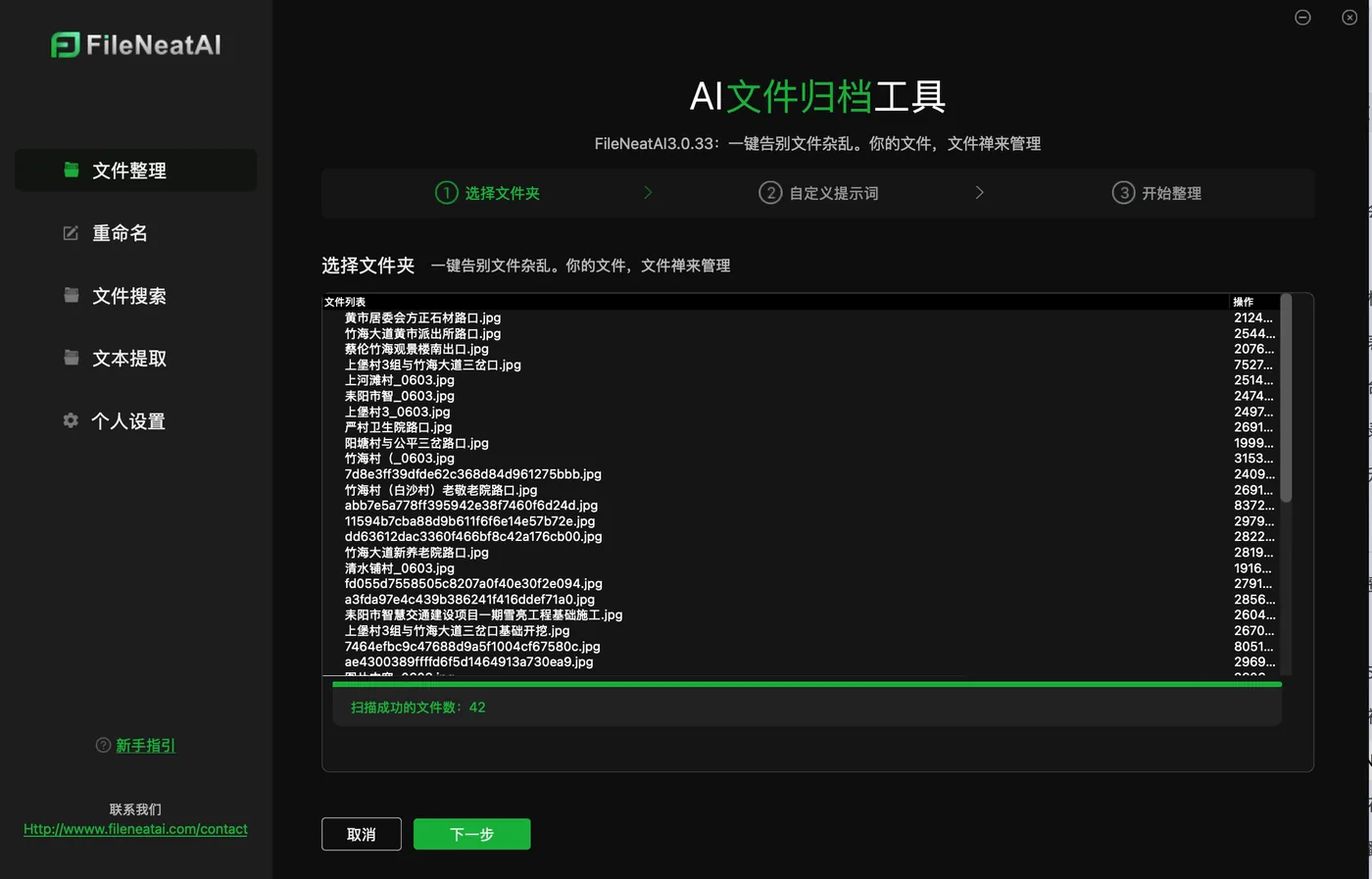
Put the files you want to organize into one folder, then drag it into FileNeatAI or click "Select folder".
Large batches take longer. We recommend no more than 500 files at a time; you can keep sorting into the existing folders later.
1.2 Options and prompts
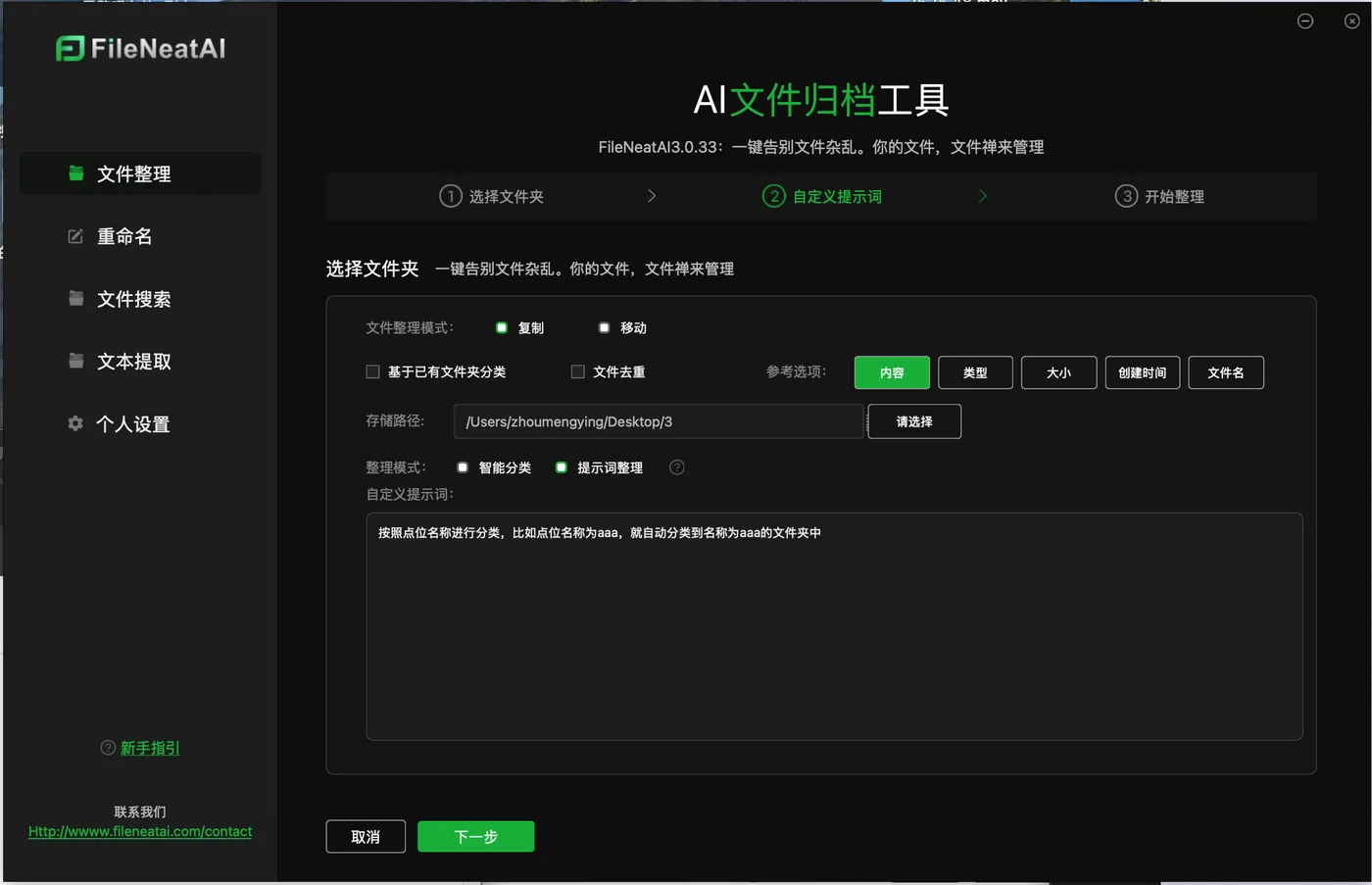
Organize mode
Copy or Move (Copy by default). We recommend copying first and deleting the originals only after you have checked the result.
Sort into existing folders
Create your category folders in the output path first, and FileNeatAI will sort files into them.
Remove duplicates
Removes duplicate files automatically. Back up first and confirm the result before deleting the source files.
Reference options
Choose any of Content, Type (file extension), Size, Created time and File name. Keep Content selected for the most accurate results.
Output path
Where organized files are saved. Required: organizing cannot finish without it.
Sorting mode
Smart sort: the AI decides the categories from the file content. Prompt sort: follows your prompt. You must select this option for your prompt to take effect.
Prompt
Describe what you want, for example "Group documents by the location they mention" or "Sort by the date in each document". Vague or random prompts can make organizing fail.
Only the output path is required. Everything else is optional and can stay at its default.
1.3 Run the organizer
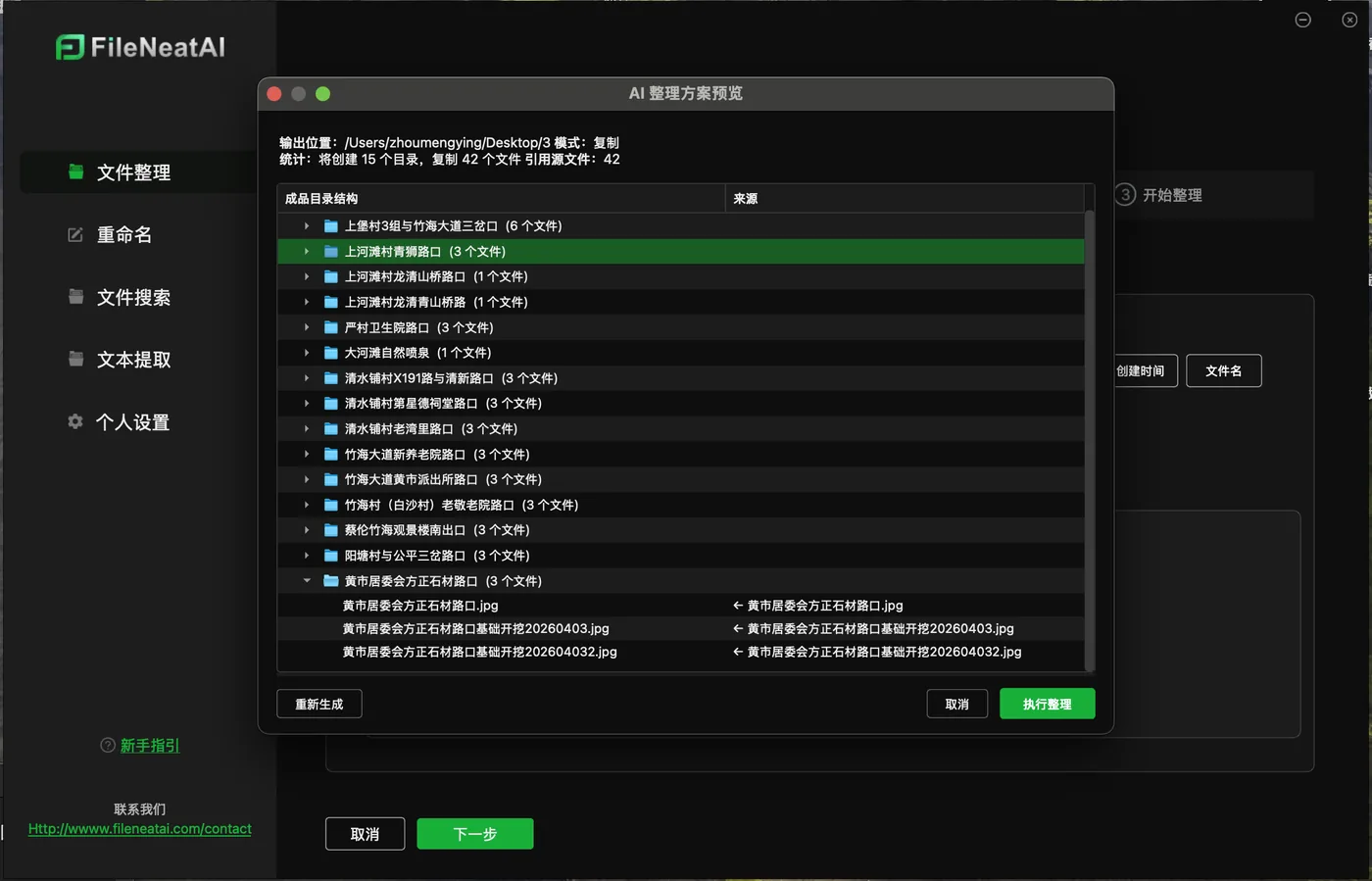
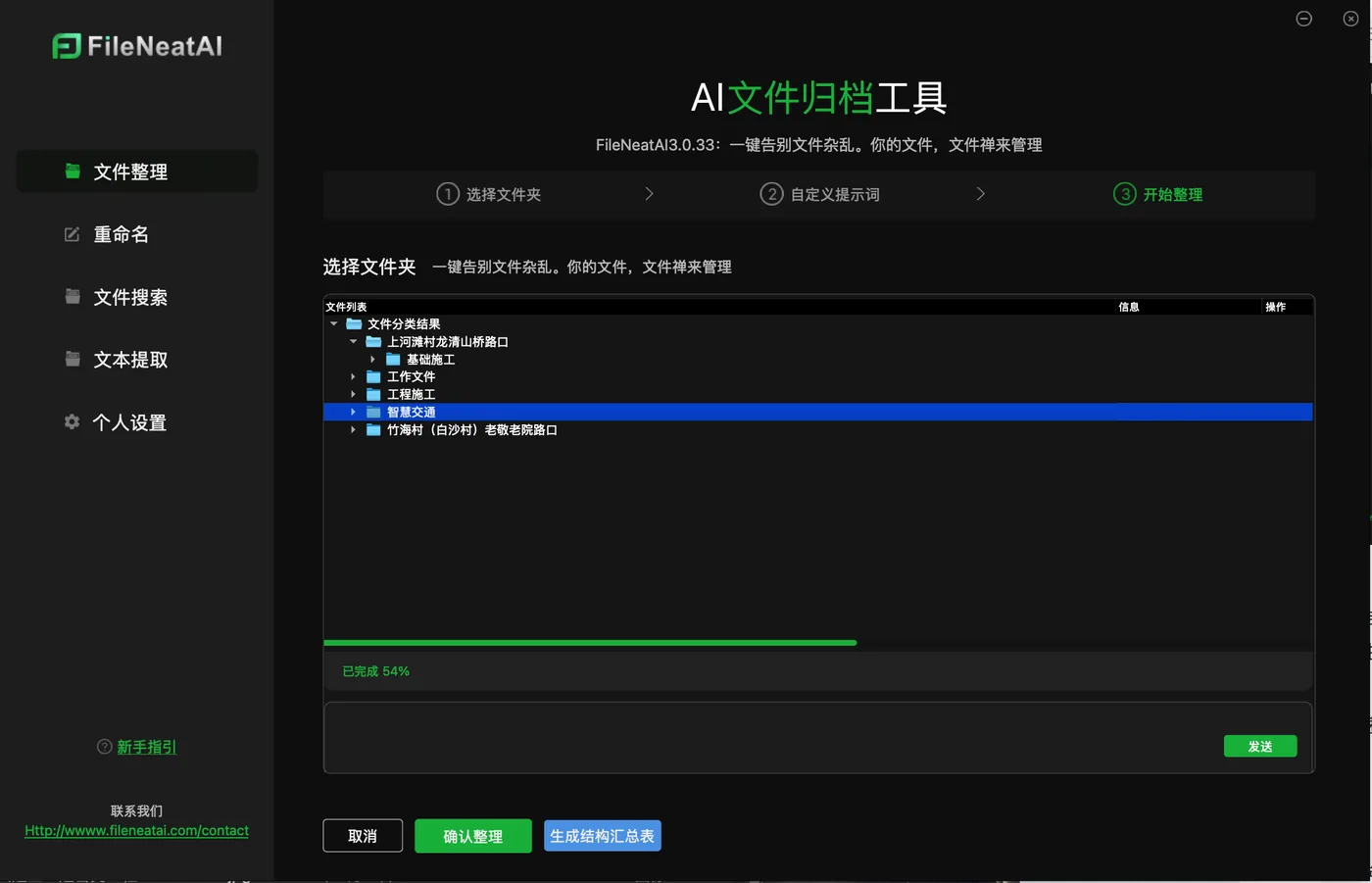
FileNeatAI first shows a preview of the plan: which folders will be created and where each file comes from. If it matches what you want, click "Run". Otherwise click "Regenerate" or go back and change your prompt.
Speed depends on your network and file sizes. You don't need to watch it; just wait for it to finish.
Smart sort finds patterns on its own. Click "Generate summary table" to get a table with links to every file, which makes the categories easy to browse.
2. Local models
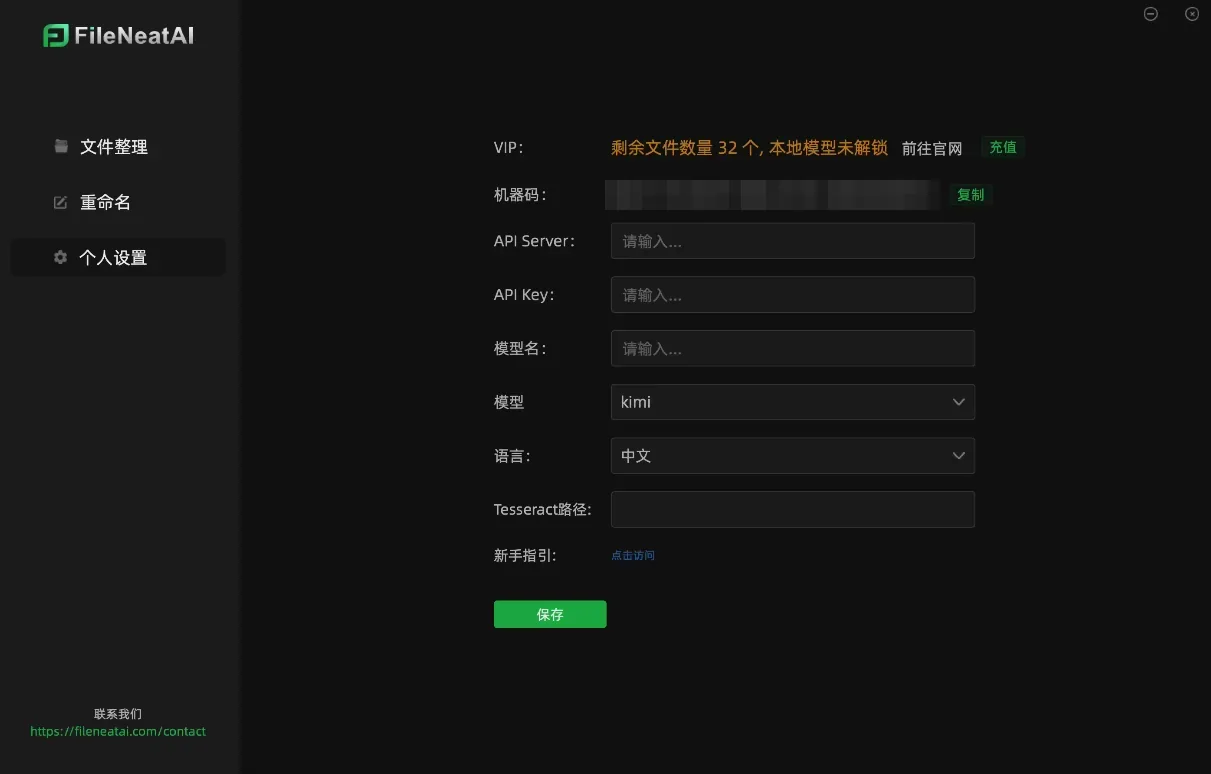
By default FileNeatAI uses Kimi, and you can switch to ChatGPT or other online models in Settings. With online models, file content is sent to the AI provider for analysis.
To keep your files private, use a local model: in Settings, set the model to Local model.
2.1 Third-party APIs
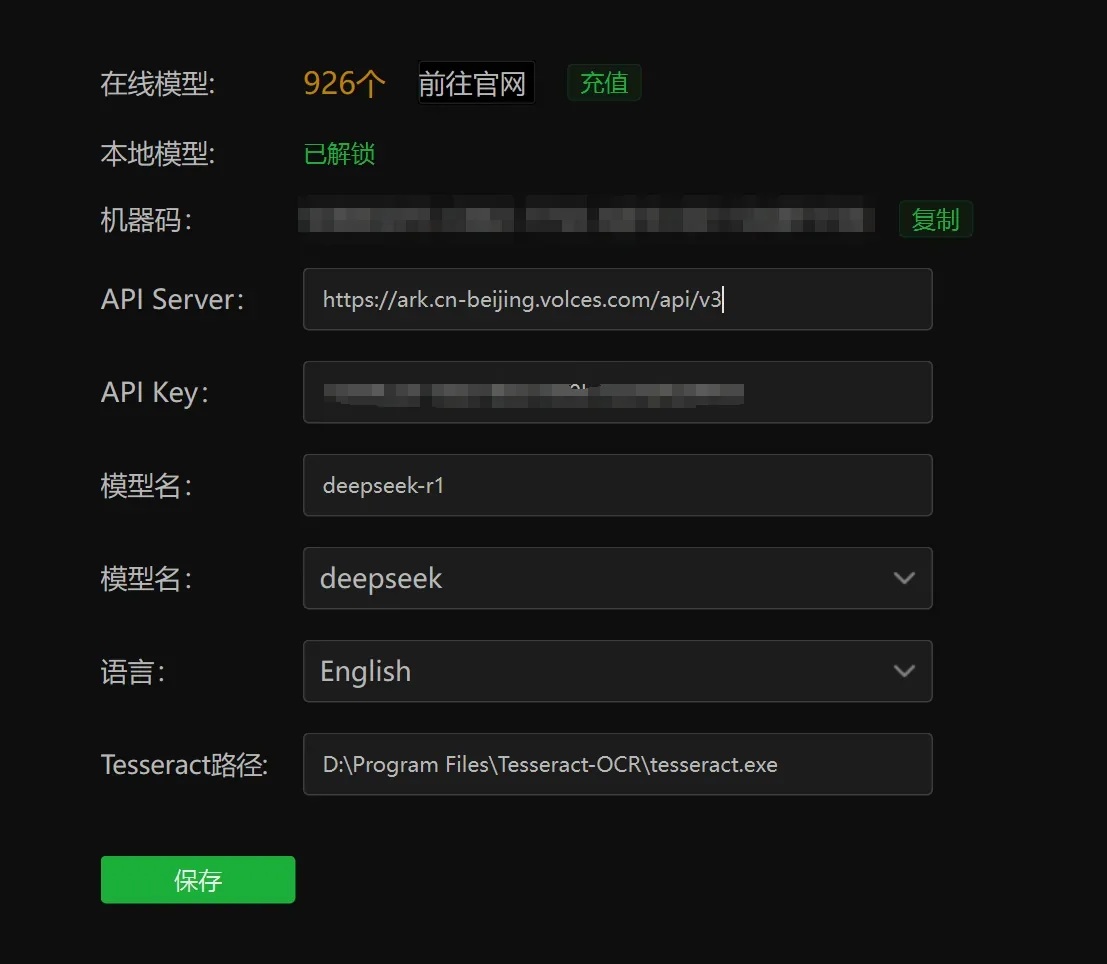
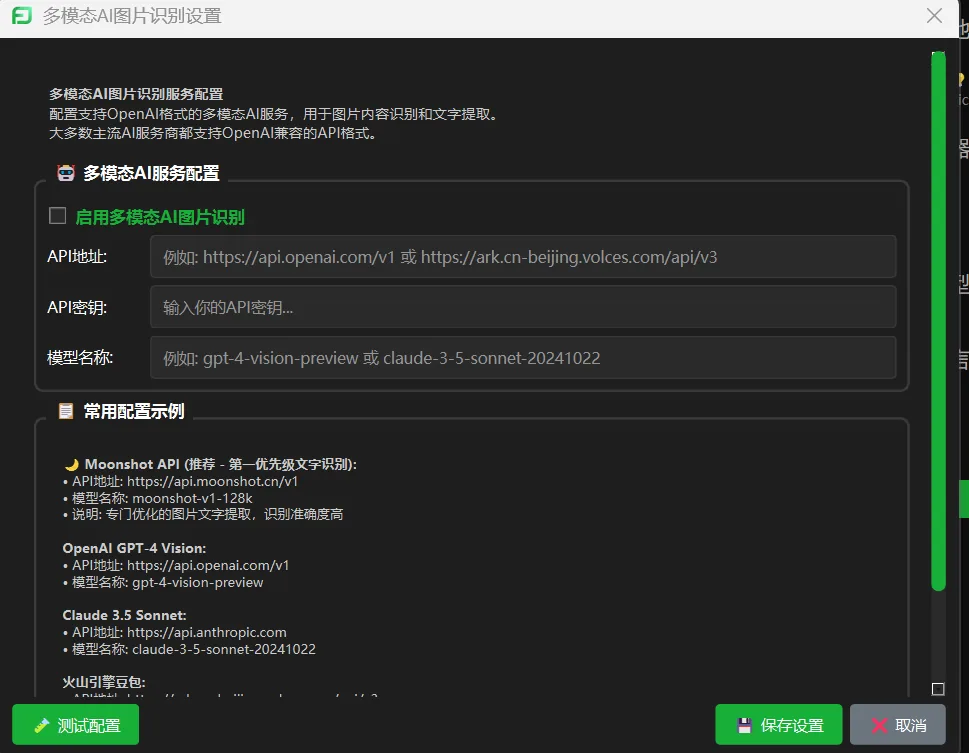
To use your own account with an OpenAI-compatible provider such as DeepSeek, Moonshot (Kimi) or Baidu:
API Server: the provider's API address, without a trailing slash, e.g. https://api.moonshot.cn/v1.
API Key: the key from your provider account.
Model name: e.g. deepseek-r1. It must match the provider's model name exactly, and your account must have access to that model. A wrong model name is the most common cause of errors.
Click "Save" and you're ready to go.
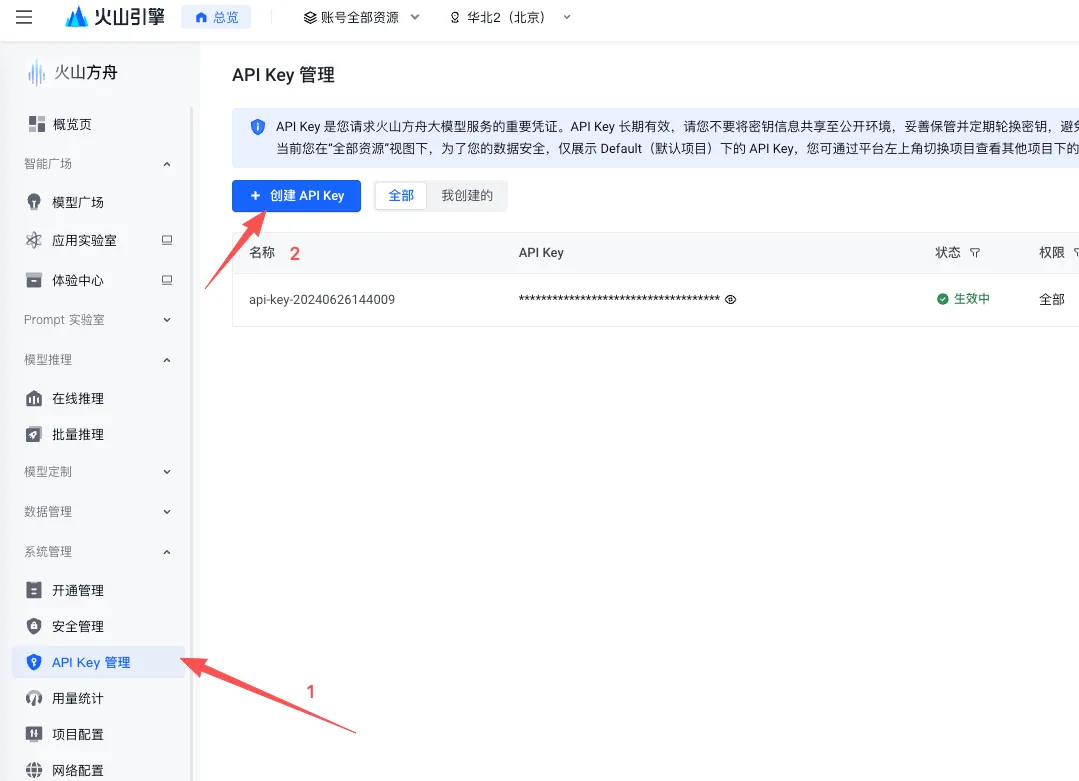
2.2 Multimodal AI for images
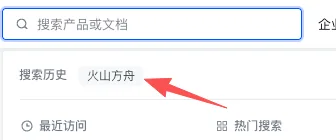
A multimodal model understands images as well as text. Standard text models can only sort documents; with a multimodal model FileNeatAI can also organize images and videos. The settings window accepts any OpenAI-compatible vision API. Example with Volcengine Ark (Doubao):
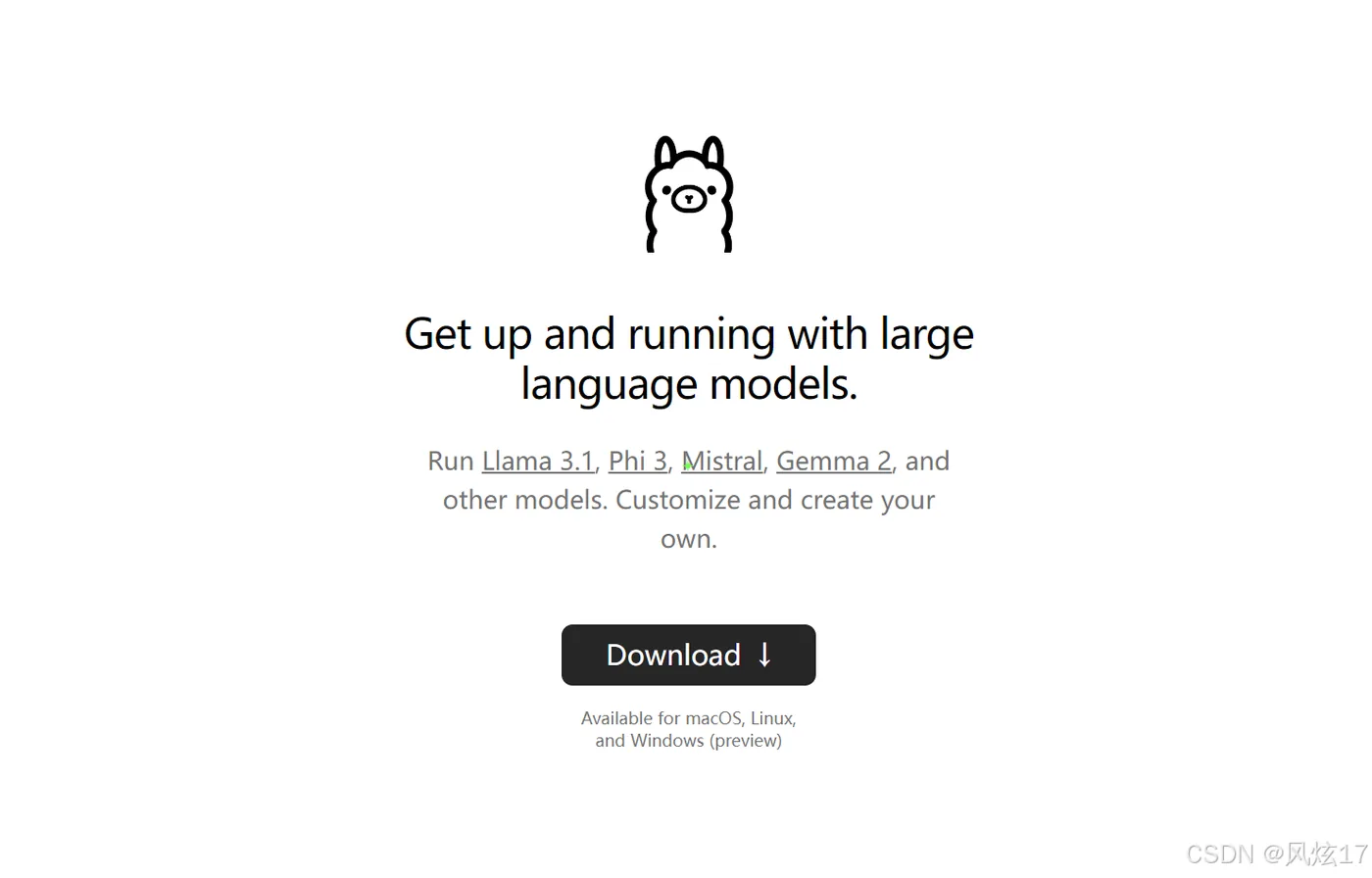
Open a terminal and run a model. For English documents:
ollama run llama3.3
For Chinese documents, Qwen works well:
ollama run qwen2.5:latest
Other models work too. A typical consumer PC can run models of roughly 3B to 7B parameters.
When the download finishes, fill in FileNeatAI's settings:
Model: Local model
API Server: http://localhost:11434/v1 (no trailing slash)
API Key: ollama
Model name: the model you use, e.g. llama3.3
Then click "Save".
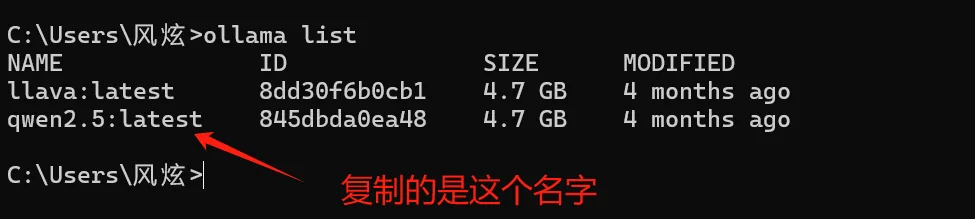
Most local model errors come from a wrong model name. Run ollama list to see the exact names.
2.4 Images with local models
With a local model, images can be classified in two ways:
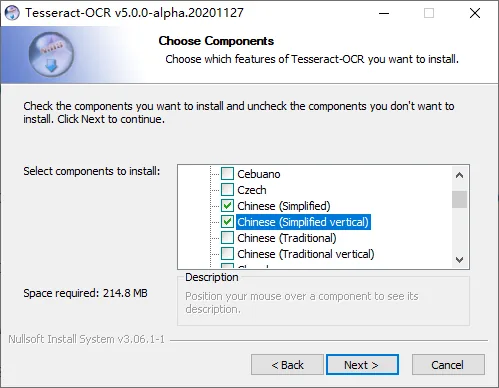
Text extraction: OCR reads the text in each image and the local model classifies it. Install Tesseract (select extra language packs during setup if your images contain non-English text).
Then enter the full path to tesseract.exe under "Tesseract path" in Settings, e.g. D:\Program Files\Tesseract-OCR\tesseract.exe, and click Save.
Visual analysis: the local vision model llava looks at the image itself. Install it with ollama run llava. FileNeatAI detects whether llava is installed and uses it once it is ready.